Sunday, 30 December 2012

Set map type of GoogleMap

To set the type of map tiles, call setMapType(int type) method of the GoogleMap acquired in last exercise "Get GoogleMap from MapFragment/SupportMapFragment".

Where type can be:
  • MAP_TYPE_NONE
    No base map tiles.
  • MAP_TYPE_NORMAL
    Basic maps.
  • MAP_TYPE_SATELLITE
    Satellite maps with no labels.
  • MAP_TYPE_HYBRID
    Satellite maps with a transparent layer of major streets.
  • MAP_TYPE_TERRAIN
    Terrain maps.

Example:
   FragmentManager myFragmentManager = getSupportFragmentManager();
SupportMapFragment mySupportMapFragment
= (SupportMapFragment)myFragmentManager.findFragmentById(R.id.map);
myMap = mySupportMapFragment.getMap();

myMap.setMyLocationEnabled(true);

//myMap.setMapType(GoogleMap.MAP_TYPE_HYBRID);
//myMap.setMapType(GoogleMap.MAP_TYPE_NORMAL);
//myMap.setMapType(GoogleMap.MAP_TYPE_SATELLITE);
myMap.setMapType(GoogleMap.MAP_TYPE_TERRAIN);

MAP_TYPE_NORMAL
MAP_TYPE_NORMAL
MAP_TYPE_SATELLITE
MAP_TYPE_SATELLITE
MAP_TYPE_HYBRID
MAP_TYPE_HYBRID
MAP_TYPE_TERRAIN
MAP_TYPE_TERRAIN


The series:
A simple example using Google Maps Android API v2, step by step.


Display my location on Google Maps Android API v2

To display my location on Google Maps Android API v2, call setMyLocationEnabled(true) method of the GoogleMap acquired in last exercise "Get GoogleMap from MapFragment/SupportMapFragment".

While enabled, the my-location layer continuously draws an indication of a user's current location and bearing, and displays UI controls that allow a user to interact with their location (for example, to enable or disable camera tracking of their location and bearing).


myMap.setMyLocationEnabled(true);


Display my location on Google Maps Android API v2


The series:
A simple example using Google Maps Android API v2, step by step.

Saturday, 29 December 2012

Get GoogleMap from MapFragment/SupportMapFragment

To get the GoogleMap underlying MapFragment/SupportMapFragment, using getMap() method.

Example to acquire GoogleMap underlying MapFragment/SupportMapFragment.
   FragmentManager myFragmentManager = getSupportFragmentManager();
SupportMapFragment mySupportMapFragment
= (SupportMapFragment)myFragmentManager.findFragmentById(R.id.map);
myMap = mySupportMapFragment.getMap();


Modify Java code from last exercise "Check if correct Google Play Service available for Google Maps Android API v2.
package com.example.androidmapsv2;

import com.google.android.gms.common.ConnectionResult;
import com.google.android.gms.common.GooglePlayServicesUtil;
import com.google.android.gms.maps.GoogleMap;
import com.google.android.gms.maps.SupportMapFragment;

import android.app.AlertDialog;
import android.os.Bundle;
import android.support.v4.app.FragmentActivity;
import android.support.v4.app.FragmentManager;
import android.view.Menu;
import android.view.MenuItem;
import android.widget.Toast;

public class MainActivity extends FragmentActivity {

final int RQS_GooglePlayServices = 1;
private GoogleMap myMap;

@Override
protected void onCreate(Bundle savedInstanceState) {
super.onCreate(savedInstanceState);
setContentView(R.layout.activity_main);

FragmentManager myFragmentManager = getSupportFragmentManager();
SupportMapFragment mySupportMapFragment
= (SupportMapFragment)myFragmentManager.findFragmentById(R.id.map);
myMap = mySupportMapFragment.getMap();

}

@Override
public boolean onCreateOptionsMenu(Menu menu) {
// Inflate the menu; this adds items to the action bar if it is present.
getMenuInflater().inflate(R.menu.activity_main, menu);
return true;
}

@Override
public boolean onOptionsItemSelected(MenuItem item) {
switch (item.getItemId()) {
case R.id.menu_legalnotices:
String LicenseInfo = GooglePlayServicesUtil.getOpenSourceSoftwareLicenseInfo(
getApplicationContext());
AlertDialog.Builder LicenseDialog = new AlertDialog.Builder(MainActivity.this);
LicenseDialog.setTitle("Legal Notices");
LicenseDialog.setMessage(LicenseInfo);
LicenseDialog.show();
return true;
}
return super.onOptionsItemSelected(item);
}

@Override
protected void onResume() {
// TODO Auto-generated method stub
super.onResume();

int resultCode = GooglePlayServicesUtil.isGooglePlayServicesAvailable(getApplicationContext());

if (resultCode == ConnectionResult.SUCCESS){
Toast.makeText(getApplicationContext(),
"isGooglePlayServicesAvailable SUCCESS",
Toast.LENGTH_LONG).show();
}else{
GooglePlayServicesUtil.getErrorDialog(resultCode, this, RQS_GooglePlayServices);
}

}

}


Also correct the layout (a TextView is mis-placed in former version!).
<RelativeLayout xmlns:android="http://schemas.android.com/apk/res/android"
xmlns:tools="http://schemas.android.com/tools"
android:layout_width="match_parent"
android:layout_height="match_parent"
tools:context=".MainActivity" >

<fragment
android:id="@+id/map"
android:layout_width="match_parent"
android:layout_height="match_parent"
class="com.google.android.gms.maps.SupportMapFragment"/>

</RelativeLayout>


download filesDownload the files.

Next:
- Display my location on Google Maps Android API v2


The series:
A simple example using Google Maps Android API v2, step by step.

Friday, 28 December 2012

Check if correct Google Play Service available for Google Maps Android API v2

According to Google Play Services Document, apps using Google Play Service API should Ensuring Devices Have the Google Play services APK. So we have to check isGooglePlayServicesAvailable() and call getErrorDialog() if not SUCCESS.

Actually in my trial experience to uninstall Google Play Service before running. The app will ask to install Google Play Service automatically, even I haven't check isGooglePlayServicesAvailable(). So I can't clarify if my code work correctly or not!

update@2013-07-16: show() must be called. ~ thanks Morrox comment.
 
GooglePlayServicesUtil.getErrorDialog(resultCode, this, RQS_GooglePlayServices).show();


Check if correct Google Play Service available for Google Maps Android API v2


Modify the java code from the last post "Include open source software license information/Legal Notices in your app using Google Maps Android API v2", to check isGooglePlayServicesAvailable() in onResume().

package com.example.androidmapsv2;

import com.google.android.gms.common.ConnectionResult;
import com.google.android.gms.common.GooglePlayServicesUtil;

import android.app.AlertDialog;
import android.os.Bundle;
import android.support.v4.app.FragmentActivity;
import android.view.Menu;
import android.view.MenuItem;
import android.widget.Toast;

public class MainActivity extends FragmentActivity {

final int RQS_GooglePlayServices = 1;

@Override
protected void onCreate(Bundle savedInstanceState) {
super.onCreate(savedInstanceState);
setContentView(R.layout.activity_main);
}

@Override
public boolean onCreateOptionsMenu(Menu menu) {
// Inflate the menu; this adds items to the action bar if it is present.
getMenuInflater().inflate(R.menu.activity_main, menu);
return true;
}

@Override
public boolean onOptionsItemSelected(MenuItem item) {
switch (item.getItemId()) {
case R.id.menu_legalnotices:
String LicenseInfo = GooglePlayServicesUtil.getOpenSourceSoftwareLicenseInfo(
getApplicationContext());
AlertDialog.Builder LicenseDialog = new AlertDialog.Builder(MainActivity.this);
LicenseDialog.setTitle("Legal Notices");
LicenseDialog.setMessage(LicenseInfo);
LicenseDialog.show();
return true;
}
return super.onOptionsItemSelected(item);
}

@Override
protected void onResume() {
// TODO Auto-generated method stub
super.onResume();

int resultCode = GooglePlayServicesUtil.isGooglePlayServicesAvailable(getApplicationContext());

if (resultCode == ConnectionResult.SUCCESS){
Toast.makeText(getApplicationContext(),
"isGooglePlayServicesAvailable SUCCESS",
Toast.LENGTH_LONG).show();
}else{
GooglePlayServicesUtil.getErrorDialog(resultCode, this, RQS_GooglePlayServices);
}

}

}


download filesDownload the files.


The series:
A simple example using Google Maps Android API v2, step by step.

Thursday, 27 December 2012

Include open source software license information/Legal Notices in your app using Google Maps Android API v2

If you use the Google Maps Android API in your application, you must include the Google Play Services attribution text as part of a "Legal Notices" section in your application. Including legal notices as an independent menu item, or as part of an "About" menu item, is recommended.

The attribution text is available by making a call to GooglePlayServicesUtil.getOpenSourceSoftwareLicenseInfo.

source: Google Maps Android API v2 - Attribution Requirements.

open source software license information/Legal Notices for Google Maps Android API v2


To include menu option "Legal Notices" to display open source software license information in a dialog.:

Modify /res/values/strings.xml to include string resource of "menu_legalnotices".
<?xml version="1.0" encoding="utf-8"?>
<resources>

<string name="app_name">AndroidMapsV2</string>
<string name="hello_world">Hello world!</string>
<string name="menu_legalnotices">Legal Notices</string>

</resources>


Modify /res/menu/activity_main.xml to add menu resource of "menu_legalnotices".
<menu xmlns:android="http://schemas.android.com/apk/res/android" >

<item
android:id="@+id/menu_legalnotices"
android:orderInCategory="100"
android:showAsAction="never"
android:title="@string/menu_legalnotices"/>

</menu>


Modify the java code to override onOptionsItemSelected() to display "open source software license information" in dialog.
package com.example.androidmapsv2;

import com.google.android.gms.common.GooglePlayServicesUtil;

import android.app.AlertDialog;
import android.os.Bundle;
import android.support.v4.app.FragmentActivity;
import android.view.Menu;
import android.view.MenuItem;

public class MainActivity extends FragmentActivity {

@Override
protected void onCreate(Bundle savedInstanceState) {
super.onCreate(savedInstanceState);
setContentView(R.layout.activity_main);
}

@Override
public boolean onCreateOptionsMenu(Menu menu) {
// Inflate the menu; this adds items to the action bar if it is present.
getMenuInflater().inflate(R.menu.activity_main, menu);
return true;
}

@Override
public boolean onOptionsItemSelected(MenuItem item) {
switch (item.getItemId()) {
case R.id.menu_legalnotices:
String LicenseInfo = GooglePlayServicesUtil.getOpenSourceSoftwareLicenseInfo(
getApplicationContext());
AlertDialog.Builder LicenseDialog = new AlertDialog.Builder(MainActivity.this);
LicenseDialog.setTitle("Legal Notices");
LicenseDialog.setMessage(LicenseInfo);
LicenseDialog.show();
return true;
}
return super.onOptionsItemSelected(item);
}

}


download filesDownload the files.


The series:
A simple example using Google Maps Android API v2, step by step.

Wednesday, 26 December 2012

Implement OnItemClickListener for GridView

My previous post describe how to implement "GridView loading photos from SD Card". Now we implement OnItemClickListener for the GridView, to display the clicked image path.

OnItemClickListener for GridView


Implement OnItemClickListener, to override onItemClick() method. To retrieve the clicked item  in onItemClick() method, call parent.getItemAtPosition(position).

We also have to modify getItem() method of ImageAdapter class, to return the item in our expected format. In this exercise, string of the file path is return.

package com.example.androidgridview;

import java.io.File;
import java.util.ArrayList;

import android.os.Bundle;
import android.os.Environment;
import android.app.Activity;
import android.content.Context;
import android.graphics.Bitmap;
import android.graphics.BitmapFactory;
import android.view.View;
import android.view.ViewGroup;
import android.widget.AdapterView;
import android.widget.AdapterView.OnItemClickListener;
import android.widget.BaseAdapter;
import android.widget.GridView;
import android.widget.ImageView;
import android.widget.Toast;

public class MainActivity extends Activity {

public class ImageAdapter extends BaseAdapter {

private Context mContext;
ArrayList<String> itemList = new ArrayList<String>();

public ImageAdapter(Context c) {
mContext = c;
}

void add(String path){
itemList.add(path);
}

@Override
public int getCount() {
return itemList.size();
}

@Override
public Object getItem(int position) {
// TODO Auto-generated method stub
return itemList.get(position);
}

@Override
public long getItemId(int position) {
// TODO Auto-generated method stub
return 0;
}

@Override
public View getView(int position, View convertView, ViewGroup parent) {
ImageView imageView;
if (convertView == null) { // if it's not recycled, initialize some attributes
imageView = new ImageView(mContext);
imageView.setLayoutParams(new GridView.LayoutParams(220, 220));
imageView.setScaleType(ImageView.ScaleType.CENTER_CROP);
imageView.setPadding(8, 8, 8, 8);
} else {
imageView = (ImageView) convertView;
}

Bitmap bm = decodeSampledBitmapFromUri(itemList.get(position), 220, 220);

imageView.setImageBitmap(bm);
return imageView;
}

public Bitmap decodeSampledBitmapFromUri(String path, int reqWidth, int reqHeight) {

Bitmap bm = null;
// First decode with inJustDecodeBounds=true to check dimensions
final BitmapFactory.Options options = new BitmapFactory.Options();
options.inJustDecodeBounds = true;
BitmapFactory.decodeFile(path, options);

// Calculate inSampleSize
options.inSampleSize = calculateInSampleSize(options, reqWidth, reqHeight);

// Decode bitmap with inSampleSize set
options.inJustDecodeBounds = false;
bm = BitmapFactory.decodeFile(path, options);

return bm;
}

public int calculateInSampleSize(

BitmapFactory.Options options, int reqWidth, int reqHeight) {
// Raw height and width of image
final int height = options.outHeight;
final int width = options.outWidth;
int inSampleSize = 1;

if (height > reqHeight || width > reqWidth) {
if (width > height) {
inSampleSize = Math.round((float)height / (float)reqHeight);
} else {
inSampleSize = Math.round((float)width / (float)reqWidth);
}
}

return inSampleSize;
}

}

ImageAdapter myImageAdapter;

@Override
public void onCreate(Bundle savedInstanceState) {
super.onCreate(savedInstanceState);
setContentView(R.layout.activity_main);

GridView gridview = (GridView) findViewById(R.id.gridview);
myImageAdapter = new ImageAdapter(this);
gridview.setAdapter(myImageAdapter);

String ExternalStorageDirectoryPath = Environment
.getExternalStorageDirectory()
.getAbsolutePath();

String targetPath = ExternalStorageDirectoryPath + "/test/";

Toast.makeText(getApplicationContext(), targetPath, Toast.LENGTH_LONG).show();
File targetDirector = new File(targetPath);

File[] files = targetDirector.listFiles();
for (File file : files){
myImageAdapter.add(file.getAbsolutePath());
}

gridview.setOnItemClickListener(myOnItemClickListener);

}

OnItemClickListener myOnItemClickListener
= new OnItemClickListener(){

@Override
public void onItemClick(AdapterView<?> parent, View view, int position,
long id) {
String prompt = (String)parent.getItemAtPosition(position);
Toast.makeText(getApplicationContext(),
prompt,
Toast.LENGTH_LONG).show();

}};

}


download filesDownload the files.

Next: GridView example: load images to GridView from SD Card

Monday, 24 December 2012

Handle onClick for our custom LinearLayout for Gallery-like HorizontalScrollView

The post "Implement Gallery-like HorizontalScrollView" and "Implement custom LinearLayout for Gallery-like HorizontalScrollView" explain how to implement Gallery-like HorizontalScrollView.

In this post, we will implement OnClickListener for the ImageView(s) to handle user click.

Handle onClick for our custom LinearLayout for Gallery-like HorizontalScrollView


Modify MyHorizontalLayout.java from the exercise "Implement custom LinearLayout for Gallery-like HorizontalScrollView" to call setOnClickListener() when create ImageView, in getImageView() method. For "Implement Gallery-like HorizontalScrollView" without custom LinearLayout, you can do the same in insertPhoto() method.

package com.example.androidhorizontalscrollviewgallery;
import java.util.ArrayList;

import android.content.Context;
import android.graphics.Bitmap;
import android.graphics.BitmapFactory;
import android.util.AttributeSet;
import android.view.View;
import android.widget.ImageView;
import android.widget.LinearLayout;
import android.widget.Toast;

public class MyHorizontalLayout extends LinearLayout {

Context myContext;
ArrayList<String> itemList = new ArrayList<String>();

public MyHorizontalLayout(Context context) {
super(context);
myContext = context;
}

public MyHorizontalLayout(Context context, AttributeSet attrs) {
super(context, attrs);
myContext = context;
}

public MyHorizontalLayout(Context context, AttributeSet attrs,
int defStyle) {
super(context, attrs, defStyle);
myContext = context;
}

void add(String path){
int newIdx = itemList.size();
itemList.add(path);
addView(getImageView(newIdx));
}

ImageView getImageView(final int i){
Bitmap bm = null;
if (i < itemList.size()){
bm = decodeSampledBitmapFromUri(itemList.get(i), 220, 220);
}

ImageView imageView = new ImageView(myContext);
imageView.setLayoutParams(new LayoutParams(220, 220));
imageView.setScaleType(ImageView.ScaleType.CENTER_CROP);
imageView.setImageBitmap(bm);

imageView.setOnClickListener(new OnClickListener(){

@Override
public void onClick(View v) {
Toast.makeText(myContext,
"Clicked - " + itemList.get(i),
Toast.LENGTH_LONG).show();
}});

return imageView;
}

public Bitmap decodeSampledBitmapFromUri(String path, int reqWidth, int reqHeight) {
Bitmap bm = null;

// First decode with inJustDecodeBounds=true to check dimensions
final BitmapFactory.Options options = new BitmapFactory.Options();
options.inJustDecodeBounds = true;
BitmapFactory.decodeFile(path, options);

// Calculate inSampleSize
options.inSampleSize = calculateInSampleSize(options, reqWidth, reqHeight);

// Decode bitmap with inSampleSize set
options.inJustDecodeBounds = false;
bm = BitmapFactory.decodeFile(path, options);

return bm;
}

public int calculateInSampleSize(

BitmapFactory.Options options, int reqWidth, int reqHeight) {
// Raw height and width of image
final int height = options.outHeight;
final int width = options.outWidth;
int inSampleSize = 1;

if (height > reqHeight || width > reqWidth) {
if (width > height) {
inSampleSize = Math.round((float)height / (float)reqHeight);
} else {
inSampleSize = Math.round((float)width / (float)reqWidth);
}
}

return inSampleSize;
}

}


download filesDownload the files.

Friday, 21 December 2012

Google Maps Android API v2 with blank map displayed, wrong API Key assigned.

If you use Google Maps Android API v2, but with a blank (gray) map displayed (like the screen shown below), and "E/Google Maps Android API(12676): Authorization failure" reported in LogCat; may be caused by a wrong API Key assigned.

Google Maps Android API v2 with blank map displayed, wrong API Key assigned.


In order to use Maps Android API, you have to assign a API Key in AndroidManifest.xml.
        <meta-data
android:name="com.google.android.maps.v2.API_KEY"
android:value="your API Key here"/>


You have to assign Debug API Key in testing, and Release API Key when release APK. Just insert the correct API Key, clean and rebuild your project should be OK. It's suggested to un-install your old app in device before re-load.


The series:
A simple example using Google Maps Android API v2, step by step.

Using SupportMapFragment

The post "A simple example using Google Maps Android API v2" using com.google.android.gms.maps.MapFragment. It work on device run API 12 and above. For older API level, using com.google.android.gms.maps.SupportMapFragment.

SupportMapFragment on Nexus One running Android 2.3.6


Modify layout to replace com.google.android.gms.maps.MapFragment with com.google.android.gms.maps.SupportMapFragment.
<RelativeLayout xmlns:android="http://schemas.android.com/apk/res/android"
xmlns:tools="http://schemas.android.com/tools"
android:layout_width="match_parent"
android:layout_height="match_parent"
tools:context=".MainActivity" >

<TextView
android:layout_width="wrap_content"
android:layout_height="wrap_content"
android:layout_centerHorizontal="true"
android:layout_centerVertical="true"
android:text="@string/hello_world" />
<fragment
android:id="@+id/map"
android:layout_width="match_parent"
android:layout_height="match_parent"
class="com.google.android.gms.maps.SupportMapFragment"/>

</RelativeLayout>


Modify main code to extend android.support.v4.app.FragmentActivity, rather than Activity. Otherwise, AndroidRuntime will be Caused by: java.lang.ClassNotFoundException: android.view.fragment in loader dalvik.system.PathClassLoader.
package com.example.androidmapsv2;

import android.os.Bundle;
import android.support.v4.app.FragmentActivity;

public class MainActivity extends FragmentActivity {

@Override
protected void onCreate(Bundle savedInstanceState) {
super.onCreate(savedInstanceState);
setContentView(R.layout.activity_main);
}

}


The series:
A simple example using Google Maps Android API v2, step by step.

+1000

Finally get +1000 at the day of End of the World:)


Turn off Lint Error Checking

After you finished coding with Google Maps Android API v2, and going to Export Signed Application Package (Right click your project -> Android Tools -> Export Signed Application Package...), MAY BE Export will be aborted because fetal lint errors were found, caused by something like:

"common_google_play_services_unknown_issue" is not translated...

lint error

It can be solved by turn off Run full error check.

Click Window in Eclipse, select Preferences.

Select Android -> Lint Error Checking on the left, and turn off "Run full error check when exporting app and abort if errors are found"


Then, you can clean and re-build your project.


The series:
A simple example using Google Maps Android API v2, step by step.

A simple example using Google Maps Android API v2


To implement Google Maps Android API v2 , follow the steps:

Now, it's time to implement your code to add Google Maps Android API v2. Notice that you have to keep both your project and google-play-services_lib opened in Eclipse.


Please note that the code below is only useful for testing your settings in an application targeting Android API 12 or later, This code should not be used in a production application.

Modify layout to add frqgment of com.google.android.gms.maps.MapFragment.
<RelativeLayout xmlns:android="http://schemas.android.com/apk/res/android"
xmlns:tools="http://schemas.android.com/tools"
android:layout_width="match_parent"
android:layout_height="match_parent"
tools:context=".MainActivity" >

<TextView
android:layout_width="wrap_content"
android:layout_height="wrap_content"
android:layout_centerHorizontal="true"
android:layout_centerVertical="true"
android:text="@string/hello_world" />
<fragment
android:id="@+id/map"
android:layout_width="match_parent"
android:layout_height="match_parent"
class="com.google.android.gms.maps.MapFragment"/>

</RelativeLayout>


Main code, actually nothing changed.
package com.example.androidmapsv2;

import android.os.Bundle;
import android.app.Activity;

public class MainActivity extends Activity {

@Override
protected void onCreate(Bundle savedInstanceState) {
super.onCreate(savedInstanceState);
setContentView(R.layout.activity_main);
}

}


A simple example using Google Maps Android API v2


download filesDownload the files.

Exported AndroidMapsV2.apk


Related:
- When Android Meets Maps, Google I/O 2013 video


Thursday, 20 December 2012

Modify AndroidManifest.xml for Google Maps Android API v2

To use Google Maps Android API v2 on your app, you have to modify your AndroidManifest.xml as listed below:
  • Insert <meta-data> element to include API key as a child of the <application>

    <meta-data
    android:name="com.google.android.maps.v2.API_KEY"
    android:value="--- your API Key here ---"/>


    Remember to replace value with your own API Key.

    Please notice that you have to use debug API Key (refer to "Generate Debug API Key for Google Maps Android API v2 service") in your testing. And then replace with release API key (refer to "Create and Obtain API Key for Google Maps Android API v2 service") in your release APK.
  • Add <permission> and <uses-permission> of MAPS_RECEIVE.

    <permission
    android:name="com.example.androidmapsv2.permission.MAPS_RECEIVE"
    android:protectionLevel="signature"></permission>
    <uses-permission
    android:name="com.example.androidmapsv2.permission.MAPS_RECEIVE"/>


    where com.example.androidmapsv2 is my package, replace with your own package name.

  • Add uses-permission:

    <uses-permission
    android:name="com.google.android.providers.gsf.permission.READ_GSERVICES"/>
    <uses-permission
    android:name="android.permission.INTERNET"/>
    <uses-permission
    android:name="android.permission.WRITE_EXTERNAL_STORAGE"/>


    and optional:

    <uses-permission
    android:name="android.permission.ACCESS_COARSE_LOCATION"/>
    <uses-permission
    android:name="android.permission.ACCESS_FINE_LOCATION"/>


  • Specify uses-feature of OpenGL ES 2:

    <uses-feature
    android:glEsVersion="0x00020000"
    android:required="true"/>


Finally, the AndroidManifest.xml will like it:

<?xml version="1.0" encoding="utf-8"?>
<manifest xmlns:android="http://schemas.android.com/apk/res/android"
package="com.example.androidmapsv2"
android:versionCode="1"
android:versionName="1.0" >

<uses-sdk
android:minSdkVersion="8"
android:targetSdkVersion="16" />

<permission
android:name="com.example.androidmapsv2.permission.MAPS_RECEIVE"
android:protectionLevel="signature"></permission>
<uses-permission
android:name="com.example.androidmapsv2.permission.MAPS_RECEIVE"/>
<uses-permission
android:name="com.google.android.providers.gsf.permission.READ_GSERVICES"/>
<uses-permission
android:name="android.permission.INTERNET"/>
<uses-permission
android:name="android.permission.WRITE_EXTERNAL_STORAGE"/>
<uses-permission
android:name="android.permission.ACCESS_COARSE_LOCATION"/>
<uses-permission
android:name="android.permission.ACCESS_FINE_LOCATION"/>

<uses-feature
android:glEsVersion="0x00020000"
android:required="true"/>

<application
android:allowBackup="true"
android:icon="@drawable/ic_launcher"
android:label="@string/app_name"
android:theme="@style/AppTheme" >
<meta-data
android:name="com.google.android.maps.v2.API_KEY"
android:value="--- your API Key here ---"/>
<activity
android:name="com.example.androidmapsv2.MainActivity"
android:label="@string/app_name" >
<intent-filter>
<action android:name="android.intent.action.MAIN" />

<category android:name="android.intent.category.LAUNCHER" />
</intent-filter>
</activity>
</application>

</manifest>


The series:
A simple example using Google Maps Android API v2, step by step.

Wednesday, 19 December 2012

Add reference library google-play-services.jar to project using MapFragment and SupportMapFragment

To use MapFragment or SupportMapFragment on your Android App, you have to add reference library google-play-services.jar to your project. Otherwise, ClassNotFoundException will be thrown caused by com.google.android.gms.maps.MapFragment or com.google.android.gms.maps.SupportMapFragment.

To add reference library google-play-services.jar:

- Right click on your project, select Properties.


- Select Android on the left selection, scroll down to the Library at right, and click Add.

- Select google-play-services_lib and click OK.

- Apply and click OK.


The series:
A simple example using Google Maps Android API v2, step by step.


Remark: Somebody report that ClassNotFOundException still happen even added reference library google-play-services.jar! Refer to comments in the post Using SupportMapFragment. So anybody have any other suggestion, please share in comments. Thanks.

Related:
- Tips to add Support Library


Generate Debug API Key for Google Maps Android API v2 service

The previous post explain how to "Create and Obtain API Key for Google Maps Android API v2 service". In my trial experience, you need a debug API Key, for your testing. Means you test on your device connected with PC and download from Eclipse.

To generate debug API key, repeat the steps in the post  "Create and Obtain API Key for Google Maps Android API v2 service", with debug certificate fingerprint (described in the post "Displaying the SHA1 certificate fingerprint") instead of release certificate fingerprint. The output should be like this:

Debug API Key for Google Maps Android API v2 service

In my test, both API Key (Key for Android apps (with certificates) and Key for browser apps (with referers)) can display map.


The series:
A simple example using Google Maps Android API v2, step by step.

Tuesday, 18 December 2012

Pro Android Web Game Apps: Using HTML5, CSS3 and JavaScript


Dive into game development and create great multiplayer online games with Pro Android Web Game Apps. This hands-on guide covers both the theory and practice of browser game development for the Android platform. You'll use cutting-edge technologies to make game engines in your browser, establish real-time server communication, and create amazing gaming experiences with artificial intelligence and rich media.
Bring your knowledge of HTML and JavaScript to the next level with Pro Android Web Game Apps. You are guided through exciting projects that give you firsthand experience with core game app development concepts. You'll start with a blank HTML page, and by the end of the book, have the skills needed to  create a multiplayer online game with rich graphics, sound, animation, and more—even if you have no previous games development or server-side experience.  

    What you’ll learn

    • How to set up your development environment, run applications, and debug and profile code
    • How to work with graphics and animations in a browser
    • How to optimize rendering and make your games run faster
    • How to handle events and user inputBuild an isometric game engineLearn the basics of 3D programming and WebGL
    • How to use JavaScript to create full-blown server-side support for your games
    • How to enrich your games using artificial intelligence

    Who this book is for

    The book is intended for developers with some generic HTML and JavaScript background who want to boost their experience to the next level and learn how to utilize browsers to build attractive multiplayer games for Android platform. No previous games development or server-side knowledge is required.

    Table of Contents

    1. Preparing the Environment
    2. Graphics in the Browser: the Canvas Element
    3. Creating the First Game
    4. Animations and Sprites
    5. Event Handling and User Input
    6. Rendering Virtual Worlds
    7. Making an Isometric Engine
    8. 3D in a Browser
    9. Using WebGL 
    10. Going Serverside 
    11. Talking to the Server
    12. Making Multiplayer Games 
    13. AI and Physics 
    14. JavaScript Game Engines 
    15. Building Native Applications 
    16. Adding Sound
    17. App A: Debugging Web Applications 


    Beginning Android Games, Second Edition


    Beginning Android Games, Second Edition offers everything you need to join the ranks of successful Android game developers, including Android tablet game app development considerations.  You'll start with game design fundamentals and programming basics, and then progress toward creating your own basic game engine and playable game apps that work on Android and earlier version compliant smartphones and now tablets. This will give you everything you need to branch out and write your own Android games.

    The potential user base and the wide array of available high-performance devices makes Android an attractive target for aspiring game developers. Do you have an awesome idea for the next break-through mobile gaming title? Beginning Android Games will help you kick-start your project.  This book will guide you through the process of making several example game apps using APIs available in new Android SDK and earlier SDK releases for Android smartphones and tablets:
    • The fundamentals of game development and design suitable for Android smartphones and tablets
    • The Android platform basics to apply those fundamentals in the context of making a game, including new File Manager system and better battery life management
    • The design of 2D and 3D games and their successful implementation on the Android platform
    This book lets developers see and use some Android SDK Jelly Bean; however, this book is structured so that app developers can use earlier Android SDK releases.  This book is backward compatible like the Android SDK. 

    What you’ll learn

    • How to set up/use the development tools for creating your first Android game app
    • The fundamentals of game programming in the context of the Android platform
    • How to use the Android's APIs for graphics (Canvas, OpenGL ES 1.0/1.1), audio, and user input to reflect those fundamentals
    • How to develop two 2D games from scratch, based on Canvas API and OpenGL ES
    • How to create a full-featured 3D game  
    • How to publish your games, get crash reports, and support your users
    • How to complete your own playable 2D OpenGL games

    Who this book is for

    This book is for people with a basic knowledge of Java who want to write games on the Android platform. It also offers information for experienced game developers about the pitfalls and peculiarities of the platform.

    Table of Contents

      1. An Android in Every Home
      2. First Steps with the Android SDK
      3. Game Development 101
      4. Android for Game Developers
      5. An Android Game Development Framework
      6. Mr. Nom Invades Android
      7. OpenGL ES: A Gentle Introduction
      8. 2D Game Programming Tricks
      9. Super Jumper: A 2D OpenGL ES Game
      10. OpenGL ES: Going 3D
      11. 3D Programming Tricks
      12. Android Invaders: The Grande Finale
      13. Going Native with the NDK
      14. Marketing and Monetizing
      15. Publishing Your Game
      16. What's Next?


    Create and Obtain API Key for Google Maps Android API v2 service

    To obtain API Key for Google Maps Android API v2 service, you have to create API Project and obtaining your API Key in Google APIs Console.

    Create API Project:

    - Visit Google APIs Console, you have to login using your Google account.

    - Scroll down to check agree and accept to these terms.


    - Expend the select on left and select Other projects -> Create...


    - Enter the name of your project and click Create project.


    - Make sure Service is selected on the left.


    - Click to enable Google Maps Android API v2.


    - You will be asked to agree and accept the terms of Google Maps/Earth APIs service.


    - Your Google Maps Android API v2 services for the project will become ON now.


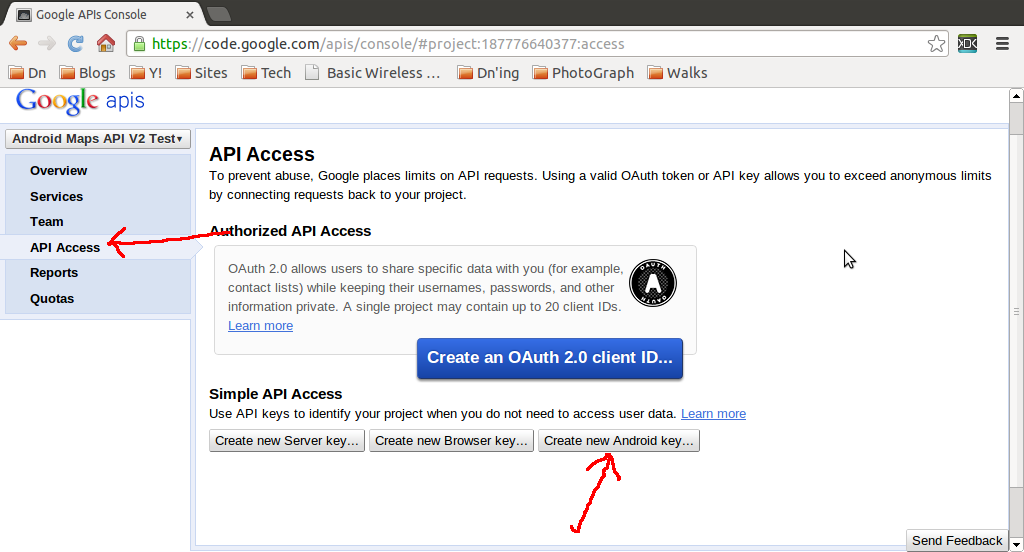
    Obtain an API Key:

    - Click API Access and Create New Android Key...


    - Enter your SHA1 Certificate fingerprint (refer to the post "Displaying the SHA1 certificate fingerprint") and package name in the box, and click Create.


    - Finally, your API Key generated.


    The series:
    A simple example using Google Maps Android API v2, step by step.